
Introduction
C# is commonly used in automation testing: it is used as the language to programmatically test other software. At the core of an automation test are basic operations:
- Reading a data from test cases.
- Invoking a program to run and produce results.
- Comparing expected output from test cases and output of the tested program.
In an earlier blog, I have demonstrated a very simple program to read data from an excel file, that is to perform the above step 1.
In this blog I demonstrate another simple program that connects to Linux via SSH protocol and performs simple commands.
Concepts
SSH connection
While there are many network protocols that allow connection between 2 machines, SSH allows the client to not only connect but to remotely control the server and is the only suitable choice for this project.
OpenSSH is a popular and widely used SSH server implementation on Linux systems.
On the client side, we could use C# third party Renti library to programmatically establish SSH connections. Note that We don't have to install SSH client.
In order to establish connections, the following information of the host is needed:
- hostname: should be the IP address of the host. Use
ifconfigcommand on the - Linux server to find out the IP address of the connection that could be established.
- username: the Linux account that the client (Window side) wishes to use. Use command
whoamiorcat /etc/passwdto find the account. - password
SSH key
SSH keys, also known as Secure Shell keys, are a pair of cryptographic keys used for secure communication and authentication in SSH (Secure Shell) protocol. SSH keys provide a more secure alternative to traditional password-based authentication.
An SSH key pair consists of two parts:
- Private Key: The private key is securely stored on the client-side (your local machine or device) and should be kept confidential. It is used to decrypt messages encrypted with the corresponding public key.
- Public Key: The public key is placed on the remote server or destination machine that you want to connect to securely. The server uses this key to encrypt data and verify the authenticity of the client attempting to connect.
When a client attempts to connect to a server using SSH, the following process SSL handshake takes place:
- The client sends its public key to the server.
- The server verifies the authenticity of the public key by checking its signature using the corresponding private key.
- If the public key is trusted and authenticated, the server sends an encrypted challenge back to the client.
- The client uses its private key to decrypt the challenge and sends it back to the server.
- The server compares the challenge response with the original challenge. If they match, the client is authenticated and granted access to the server.

Implementation
In this project, I install Linux Ubuntu on a VM Virtualbox. The host computer is of course, Windows contains the C# program. Before coding C#, I have to set up SSH server on Linux, and allow connections between the host computer and the VM.
Installing SSH on Linux
- To install SSH:
sudo apt-get install openssh-server

- To configure SSH: the config file is stored in
/etc/ssh/sshd_config - To start SSH:
service ssh start

- To check status of SSH:
sudo service ssh status
Set up connection
Setup connection between the host computer and the VM requires enabling an extra adapter. Oracle VM VirtualBox allows such option. Mouse over the VM, choose Settings -> Network -> Attached to Host Only Adapter

On my system, the VM automatically creates a connection and assigns the VM an IP address of the same network (same subnet) with the host computer. Type ifconfig to check.
In addition, test the connection by ping command from the host computer.
Code:
The following codes runs a C# program to connect to the Linux VM at the Linux's address. It then invokes a Linux command pwd to find the current directory.
using System;
using Renci.SshNet;

//SqlDatabaseConnector is just the name of my .Net Framework console program. It is generated by Visual Studio
namespace SqlDatabaseConnector
{
    internal class Program
    {
        static void Main()
        {
            // SSH connection information
            string hostname = "192.168.56.101";
            string username = "minh";
            string password = " ";

            // Connect to the SSH server
            using (var client = new SshClient(hostname, username, password))
            {
                try
                {
                    client.Connect();

                    // Execute a command on the remote server
                    var commandResult = client.RunCommand("pwd");

                    // Print the command output
                    Console.WriteLine(commandResult.Result);
                    Console.ReadLine();
                }
                catch (Exception e)
                {
                    Console.WriteLine("Error: " + e.Message);
                }
                finally
                {
                    // Disconnect from the SSH server
                    client.Disconnect();
                }
            }
        }
    }
}
On my system, the program prints /host/minh which is the home directory on the Linux program. Knowing this directory, I could appropriately program to invoke shell scripts or a Linux program in different directories.
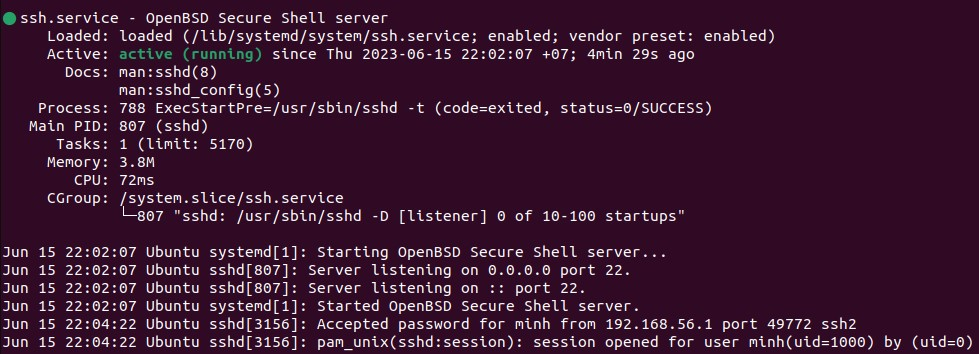
In addition, when the C# programs connects properly to Linux via SSH, we could check SSH status and find out the connection being established.
Debugging
If the program fails to connects it should returns an exception with message:
While debugging we could see more information contained in SshClient. For example, the above shows that Isconnected = false, indicating that no connection is established yet.
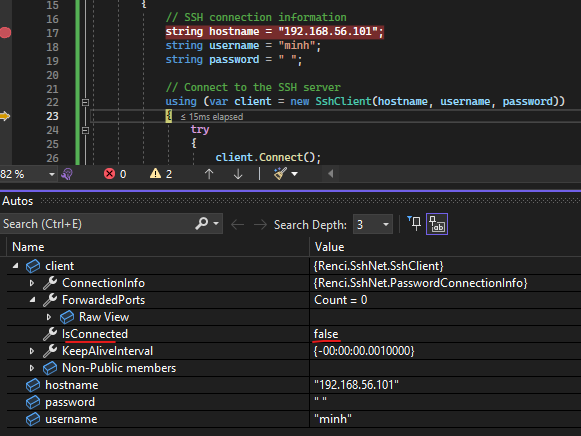
The client further has a number of fields whose data should be compared with the configuration of the ssh server on /etc/ssh/sshd_config

In addition, we should always perform ping command from host to check the connection as well as using the command service ssh status the check the SSH server on Linux side.
Configuring SSH Keys
On Linux server, we should create a public key put it onto ~/.ssh/authorized_keys
On Windows host, we should import the private key to the C# project.
Method 1: (note I don't use this method but find it commonly guided on internet)
- To generate public and private key, use command
ssh-keygen
minh@Ubuntu:~/Desktop$ ssh-keygen
Generating public/private rsa key pair.
Enter file in which to save the key (/home/minh/.ssh/id_rsa):
Enter passphrase (empty for no passphrase):
Enter same passphrase again:
Your identification has been saved in /home/minh/.ssh/id_rsa
Your public key has been saved in /home/minh/.ssh/id_rsa.pub
The key fingerprint is:
SHA256:c4UyPqSlaQ5ITJZTpIptA9v20xjpqpWVVzgv91bJCv0 minh@Ubuntu
The key's randomart image is:

+---[RSA 3072]----+
|  o+o            |
| +o.   .   .     |
|. +.  o * . .    |
|.B . o @ + o .   |
|+ B * B S o +    |
| o * O o * +     |
|  o = o   + E    |
| . . .   .       |
|...              |
+----[SHA256]-----+- The files are created.
id_rsa.pubis the public key.id_rsais the private key.
minh@Ubuntu:~/.ssh$ ls -al
total 16
drwx------  2 minh minh 4096 Jun 16 00:44 .
drwxr-x--- 25 minh minh 4096 Jun 16 00:15 ..
-rw-------  1 minh minh 2602 Jun 16 00:44 id_rsa
-rw-r--r-- 1 minh minh 565 Jun 16 00:44 id_rsa.pub- create hidden ssh folder, and give it priviledge 700
sudo chmod 700 ~/.ssh - open the public key and copy the content to ~/.ssh/authorized_keys. Note: the entire key chain must be on one line.
- Make sure that the priviledge of the ~/.ssh/authorized_keys. is 600. You could change the priviledge by the command:
sudo chmod 600 ~/.ssh/authorized_keys - Now copy the private key to Windows and import it to C#.
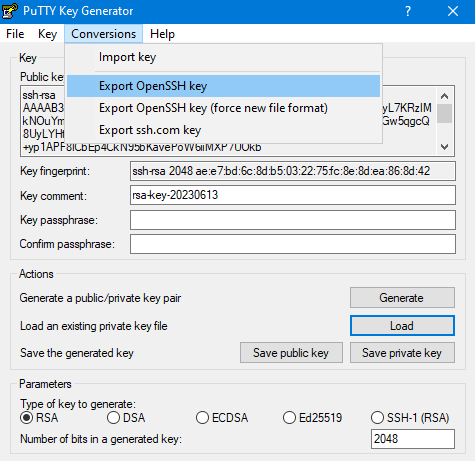
Method 2: Use PuttyGen in Windows host to create private and public key. This will enable password less connection from Putty to the Linux remote machine. This will also export SSH private and public key to be used.
- Create the keys.
- Create .ssh folder, give it priviledge 700.
- Create
~/.ssh/authorized_keysin Linux home folder, make sure the priviledge is 600. - Copy the content of the public key to
~/.ssh/authorized_keys. Keep the code in online. - On PuttyGen in Windows host, reopen the private key file and choose
Conversion -> Export OpenSSHkeys (don't include force new file format) to generate a private key that could be used in C# program.
Add SSH Keys to C# Program
SSH private key file is imported to the program. In my project, I add it to the same directory with the cs file, and thus the path to the file is simply the name of the file itself.
An instance of PrivateKeyFile class is passed to PrivateKeyAuthenticationMethod to provide authentication.
using System;
using Renci.SshNet;

class Program
{
    static void Main()
    {
        string host = "192.168.1.100";
        string username = "minh";
        string privateKeyFilePath = "minh.ppk";

        // Read the private key file
        PrivateKeyFile privateKeyFile = new PrivateKeyFile(privateKeyFilePath);

        // Set up authentication using the private key
        PrivateKeyAuthenticationMethod privateKeyAuth = new PrivateKeyAuthenticationMethod(username, privateKeyFile);

        // Create a connection info object
        ConnectionInfo connectionInfo = new ConnectionInfo(host, 22, username, privateKeyAuth);

        // Create an SSH client
        using (var client = new SshClient(connectionInfo))
        {
            try
            {
                // Connect to the SSH server
                client.Connect();

                // Execute a command on the server
                var command = client.RunCommand("ls -la");
                Console.WriteLine(command.Result);
            }
            finally
            {
                // Disconnect from the SSH server
                client.Disconnect();
            }
        }
    }
}